… that you can use a “Profile” on many screens, including the Purchasing Dashboard screen, to maintain the layout you want?
Click on the ‘Profile’ button on the Purchasing Dashboard and the ‘Save and Load Profiles’ pop-up opens.
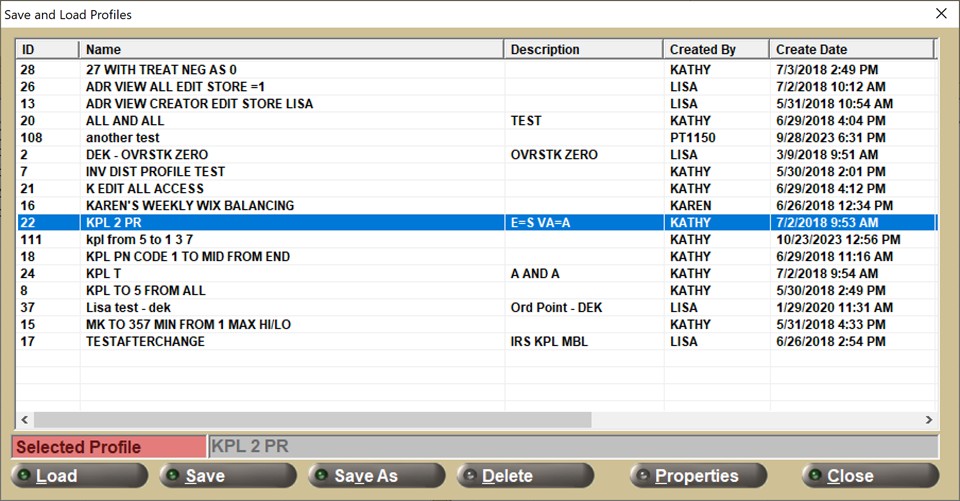
From here, you can assign names and descriptions to profiles, as well as manage the “access” to it, (who can access it or edit it in the application.)
When a profile is saved, the following is saved with that profile:
- Order (arrangement) of columns
- Hidden columns or displayed columns
- Sort order of columns
- Select Top Row After Sorting setting
- Grouping
- Column filters
- Auto Filter Row and its settings
- Filters set by the Search Orders for Parts pop-up
- Conditional Filters
- Show Find Panel
- Show Auto Filter Row
- Font size
Start using profiles today to streamline use of the Purchasing Dashboard in the exact format and layout that suits your needs!